Your IRIS Elements
Client Portal Guide
Everything you need to know about accessing your secure client portal, reviewing your documents and approving your accounts or tax return.
Getting started
When we invite you to use IRIS Elements, look out for an email with instructions to access your portal. Follow the link and any instructions in that email. Once signed in, you will see your dashboard.
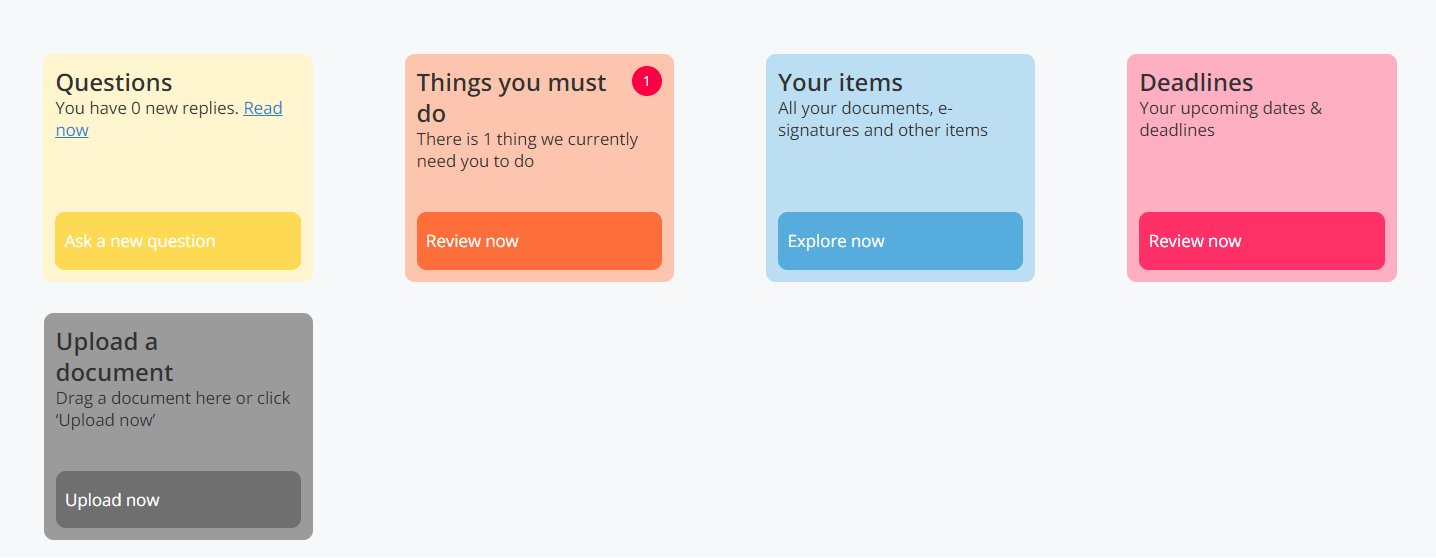
Example IRIS Elements client dashboard. Your screen and available options may vary.
What do the coloured boxes mean?
These are the main areas on your IRIS Elements home screen. Select the relevant box to continue.
Questions
Ask us a question and read replies. You may also see questions that we have sent to you.
Things you must do
Shows tasks awaiting your attention. If there is a number on this box, select Review now to see what needs doing.
Your items
Find your documents, forms and requests for electronic signatures. Select Explore now to view your items.
Deadlines
See any upcoming deadlines we have made available to you through the portal.
Upload a document
Send us documents securely. Select Upload now or drag a document into the upload area.
How to review and approve documents
When your accounts or tax return are ready for approval, we will let you know. The steps below explain where to begin.
Open the task
Sign in and select Review now under Things you must do, or look in Your items for the relevant document.
Read everything carefully
Check your name, figures and other details. If you spot anything incorrect or have a question, contact us before approving.
Follow the signing request
If we have requested your signature, follow the on screen instructions to review and sign the document electronically.
Sending us a document
From the dashboard, find the grey Upload a document box. Click Upload now and follow the instructions to select the file you would like to share.
For example, you may need to send a missing receipt, statement or other supporting document. Please only upload information we have requested or that is relevant to your accountancy work.
Frequently asked questions
I haven’t received my portal invitation. What should I do?
Check your inbox and junk or spam folder. If you still cannot find it, contact us so we can check the invitation.
I can sign in, but I cannot find my accounts or tax return.
Look under Things you must do and Your items. If the document is not visible, please let us know.
What if something on my accounts or tax return is wrong?
Please contact us and explain what you think needs changing. Do not sign the document until we have reviewed your query.
Can I upload documents through the portal?
Yes, if the Upload a document box is available on your dashboard, use Upload now to share your files with us securely.
What if I still need help?
Contact Childminder Accountancy Services and tell us which part of your portal you need help with. Please do not share your password.
Need a little help?
If you are having difficulty accessing your portal or reviewing a document, please get in touch with us. We’ll be happy to point you in the right direction.